Installation

Modified on Thu, 29 Jan at 4:21 PM

The Reemo Agent is the software to install on your remote computers in order to enable remote access via the Reemo web interface. Once installed and configured with your Personal Key or Studio Key, the computer will automatically appear in your portal.


Windows

On Windows, installation is done in a few simple steps:

  1. Download the installer from: https://reemo.io/download/

  2. Run the downloaded .exe file.

  3. Follow the instructions displayed by the setup wizard.
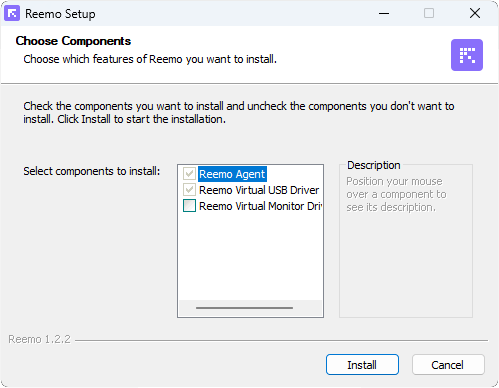
Reemo Agent installation wizard on Windows


  1. Enter your Personal Key or Studio Key to link this computer to your account or organization.
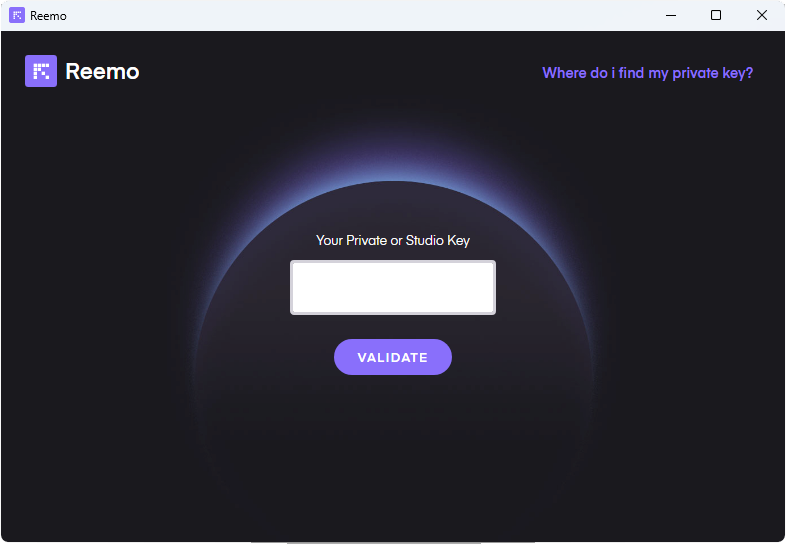
Entering the Personal Key or Studio Key during installation

Once the installation is complete, the agent starts automatically in the background.

Important

The Personal Key or Studio Key is required to link the machine to your account or organization.


During installation, there is an option to enable the Reemo Virtual Monitor Driver. If you want to use the virtual display feature, make sure to check this box before completing the installation.

Silent Installation

Silent installation allows you to install the Reemo Agent without a user interface, ideal for automated or large-scale deployments.

set studio_key=<PRIVATE_KEY>
set signal_server=<SIGNAL_SERVER>
md "C:\Program Files\Reemo"
powershell Invoke-WebRequest 'https://download.reemo.io/reemo.setup.x64.exe' -OutFile 'C:\Program Files\Reemo\reemo.setup.x64.exe'
"C:\Program Files\Reemo\reemo.setup.x64.exe" /S /SECRETKEY="%studio_key%" /SERVER="%signal_server%"


Note

Silent installation options:
  • /S : Launches the installation in silent mode (no user interface).

  • /SECRETKEY : Specifies the Personal Key or Studio Key directly in the command.

  • /SERVER : Specifies the custom signaling server address in the format “server:port”.


Linux

On Linux, the agent can be installed directly from the terminal, depending on your distribution.

Note

  • Current versions only support capture through X.Org Server.

  • You must have administrative (sudoer) rights to install the agent.

Debian Based (Ubuntu, Debian, etc.) (64-bit)

curl -sL -o /tmp/reemo.x 'https://download.reemo.io/linux/deb/setup.x'
sudo bash /tmp/reemo.x

Fedora (64-bit)

curl -sL -o /tmp/reemo.x 'https://download.reemo.io/linux/rpm/setup.x'
sudo bash /tmp/reemo.x

Arch Linux (64-bit)

curl -sL -o /tmp/reemo.x 'https://download.reemo.io/linux/arch/setup.x'
sudo bash /tmp/reemo.x

Note

Installation options:
  • Interactive installation: Without options, the script will ask you to enter your Personal Key or Studio Key directly in the terminal during installation.

  • --key : Allows you to specify your Personal Key or Studio Key directly in the command line to avoid interactive entry.

  • --server : Allows you to specify the address of your custom signaling server for private cloud deployments.


# Example with registration key and custom signaling server
sudo bash /tmp/reemo.x --key <PRIVATE_KEY> --server <SIGNAL_SERVER>

Important

The Personal Key or Studio Key is required to link the machine to your account or organization.


MacOS

Installing the Reemo Agent on macOS is done directly from the Terminal.

Note

  • Requires macOS 10.14 Mojave or later.

  • Universal build (compatible with Intel and Apple Silicon).

  • Versions prior to macOS 13 Ventura require the BlackHole audio driver for sound capture.

  • You must have administrative rights to install the agent.

Installation:

curl -skL -o /tmp/install_reemo.x 'https://download.reemo.io/macos/setup.x'
sudo bash /tmp/install_reemo.x

Note

Installation options:
  • Interactive installation: Without options, the script will ask you to enter your Personal Key or Studio Key directly in the terminal during installation.

  • --key : Allows you to specify your Personal Key directly in the command line to avoid interactive entry.

  • --server : Allows you to specify the address of your custom signaling server for private cloud deployments.


# Example with registration key and custom signaling server
sudo bash /tmp/install_reemo.x --key <PRIVATE_KEY> --server <SIGNAL_SERVER>

Important

The Personal Key or Studio Key is required to link the machine to your account or organization.
macOS will also request additional permissions to ensure the Reemo Agent functions properly. Be sure to accept the screen recording and accessibility requests.

Note

To enable audio capture on versions prior to macOS 13 Ventura, install the BlackHole driver:

brew install blackhole-2ch

Was this article helpful?

That’s Great!

Thank you for your feedback

Sorry! We couldn't be helpful

Thank you for your feedback

Let us know how can we improve this article!

Select at least one of the reasons
CAPTCHA verification is required.

Feedback sent

We appreciate your effort and will try to fix the article