I can't see my mouse pointer
Windows requires a physical mouse to be plugged in to your target computer to show the mouse pointer.
Alternatively you can search for “mouse keys” in the start menu and enter into the "Control the mouse pointer with the keyboard" selection.
Once in the settings you can turn the option On and then deselect the "Only use Mouse Keys when Num Lock is on" option. Your options should look something like this: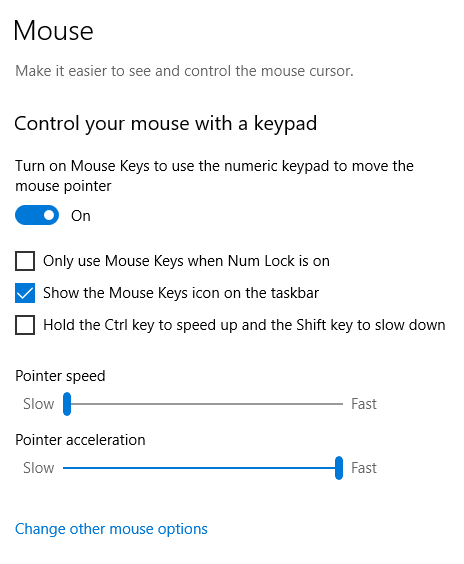
How do i use a gamepad/controller with Reemo on Windows ?
Reemo requires the installation of the Windows ViGEm driver ( https://github.com/ViGEm/ViGEmBus/releases ) on your remote computer. Reemo 1.9.0.0 or higher is required in order to ensure compatibility with the Virtual Gamepad Emulation Bus driver.
Reemo's <a href="https://reemo.io/reemo-desktop" target="_blank" rel="noopener noreferrer">remote desktop service</a> requires at least one monitor to be plugged in to capture your desktop. If you do not wish to have monitors or want to add more monitors to your Reemo enabled computer, you can buy some cheap HMDI or Display Port dongles that mimicks a monitor and plug them to your GPU. https://gamepad-tester.com
Why is my Screen Black ?
Reemo's remote desktop service requires at least one monitor to be plugged in to capture your desktop. If you do not wish to have monitors or want to add more monitors to your Reemo enabled computer, you can buy some cheap HMDI or Display Port dongles that mimicks a monitor and plug them to your GPU.
My Computer is "Offline"
If you are sure that your computer is on (not sleeping) and connected to internet, please also check that the Reemo Service is up and running and that your Private Key is correct.
My Reemo is not up to date
Please check that the Windows Service "Reemo Auto Updater" is up and running.
My Windows computer shows a blue screen (BSOD) caused by “reemaudio.sys”.
This issue is caused by an outdated audio driver. Update to the latest “Reemo Audio Driver” and remove the old one via the Device Manager to resolve the issue.
Was this article helpful?
That’s Great!
Thank you for your feedback
Sorry! We couldn't be helpful
Thank you for your feedback
Feedback sent
We appreciate your effort and will try to fix the article